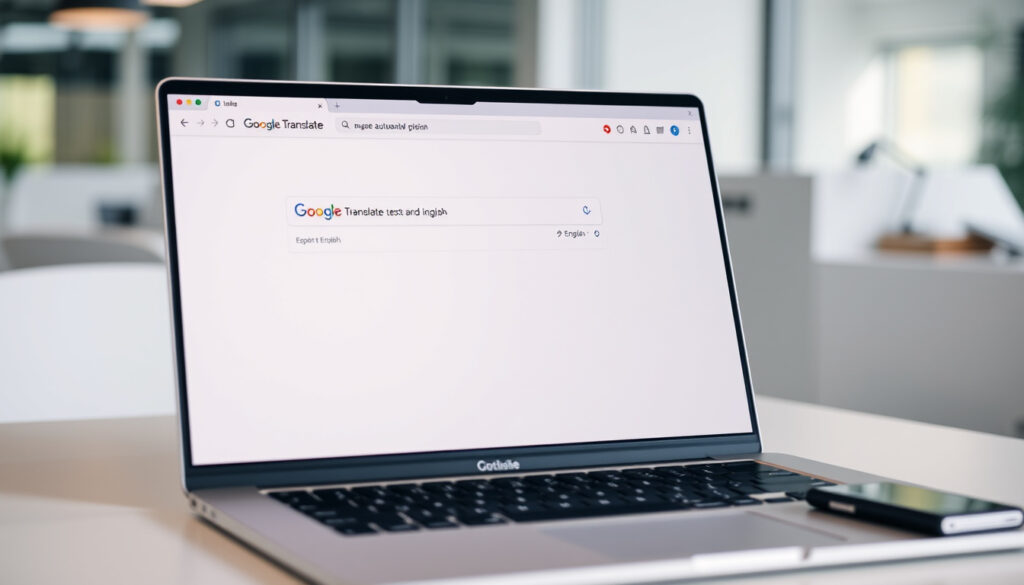
How to Detect Language to English on Google Translate
Stumbling onto text you can’t identify is oddly common — whether it’s a recipe scrawled in Portuguese, a sign in Tokyo, or an email in Urdu. Google Translate sidesteps the guessing game by detecting the language automatically before translating it to English. This guide walks through the detection process, shows you exactly where to click on desktop and mobile, and flags the quirks worth knowing before you rely on it for anything important.
Languages Supported: Over 100 · Primary Provider: Google Translate · Mobile Detection Available: Yes · Free Access: Yes · Daily Users: Millions
Quick snapshot
- Google Translate offers free detection to English (Android Police)
- Supports over 100 languages on the web app (Android Police)
- Uses neural machine translation for detection (Android Police)
- Exact detection accuracy rates for individual language pairs (Android Police)
- Current precise count of supported languages (sources cite 133–141) (YouTube Tutorial)
- Regional differences in availability or accuracy (Android Police)
- API documentation remains current as of 2026 (Google Cloud Docs)
- Mobile app language counts from 2023 tutorials (YouTube Tutorial)
- API developers can integrate detectLanguage method in Basic and Advanced editions (Google Cloud Docs)
- Manual override recommended if known language differs from detected (YouTube: Can Google Translate Detect Language?)
Four key data points surface consistently across official and community sources: the service name, the core feature, the access method, and the language breadth.
| Field | Value |
|---|---|
| Main Service | Google Translate |
| Key Feature | Detect language → English |
| Access Type | Web and mobile |
| Language Count | Over 100 |
How Does Detect Language to English Work on Google Translate?
Google Translate identifies the source language by analyzing character patterns, word structures, and contextual cues through neural machine translation technology. The system doesn’t require you to specify what you’re reading — it makes an educated guess and delivers the English translation in seconds. This works across the web interface, the mobile app, and the Cloud Translation API.
Three inputs types load with detection enabled: typed text, images captured via camera, and documents or web pages pasted as URLs. For each mode, the flow is similar — you trigger translation, the engine detects the source language, and output appears in your target language (English, by default).
Auto-Detection Process
The detection fires when you click the translate button, not as you type. On the web app, you select “Detect language” from the source-language dropdown on the left panel, then paste or type your content. The engine identifies the language, selects the appropriate model, and translates to English. Android Police’s tutorial confirms that the feature analyzes text the moment you click translate — it doesn’t predict as you type. On the mobile app, you tap the source language button below the input field and choose “Detect Language” from the menu that appears.
The Cloud Translation API takes a programmatic approach. Developers call the detectLanguage method, which returns a list of detected languages sorted by confidence score — the most probable language appears first. Google Cloud Docs notes that the API supports text/plain and text/html MIME types, with locations set to global by default or us-central1 for glossaries. Both Basic and Advanced editions include this method.
Supported Input Languages
Google Translate on the web handles over 100 languages automatically. The mobile app counts are less consistent — one 2023 tutorial cites 133 supported languages, while another beginner’s guide references 141. The discrepancy reflects ongoing updates rather than a error; Google regularly expands its language roster. The web version’s “>100” claim appears in most official documentation, which is the conservative figure.
Detection accuracy varies by language pair. High-resource languages like Spanish, French, and Mandarin typically detect correctly on the first try. Low-resource or closely related languages — say, Romanian versus Portuguese — may misfire. The system is smart, but not psychic.
Step-by-Step Guide to Translate to English
Getting started takes under a minute whether you’re on a laptop or a phone. The interface differs slightly between platforms, but the core logic is identical: tell Google Translate you don’t know the source language, paste your text, and receive an English translation.
Using Desktop
- Open translate.google.com in your browser.
- Click the source-language dropdown on the left panel.
- Select “Detect language” from the list — it’s typically positioned near the top.
- Alternatively, click the “Detect Language” button above the source text box.
- Type or paste your text in the left panel.
- Click the translate button (right-arrow icon).
- Read the English translation in the right panel.
For website translation, paste the URL in the input field, click the right-arrow, and Google Translate opens the translated version in a new view. A bar at the top of the translated page lets you correct the source language if detection guessed wrong. You can switch to the full site by clicking the three-dot menu and choosing “Go to full site” for an uncluttered reading experience.
The implication: the web interface offers multiple paths to auto-detection, giving users flexibility in how they trigger the feature.
Mobile App Instructions
- Open the Google Translate app (download from Google Play Store if needed).
- Tap the source language button at the bottom-left of the screen.
- Select “Detect Language” from the language menu.
- Type or paste your text in the bottom panel.
- View the English translation in the top panel.
The mobile app displays original text above and translation below, with speaker icons for audio playback and copy buttons for clipboard access. For images, tap the camera icon — the app uses Google Lens integration for real-time camera translation with automatic detection. Offline language packs are available for download if you need translation while traveling without data.
Speech input doesn’t work when Detect Language mode is active on the mobile app. The Google Translate Community support thread confirms this limitation — you must manually select a source language to use the microphone. If you’re in a conversation and unsure what language your partner is speaking, you’ll need to switch to a specific language first.
Translating Popular Languages to English
Spanish, Hindi, Arabic, and Urdu rank among the most-searched language pairs when users want translation to English. Google Translate handles these pairs reliably, though each has distinct characteristics worth knowing before you start.
Spanish to English
Spanish is one of Google Translate’s strongest language pairs. The system was trained on extensive parallel corpora, and detection rarely fails for standard Spanish text. Dialect variations — Castilian versus Mexican versus Caribbean Spanish — don’t typically cause detection problems; the engine treats them as the same language. One nuance: very short text (under 10 words) can trigger false detection if the input contains common cognates with English.
Hindi to English
Hindi detection is generally solid for Devanagari script text. The challenge arises with romanized Hindi (transliterated Latin script), which the system may misidentify as English or another Romance language. For romanized input, manually selecting Hindi as the source language improves accuracy. Full Hindi script detection works well for longer passages with proper diacritical markers.
Arabic and Urdu
Arabic and Urdu share extensive vocabulary and near-identical character sets, making mutual misdetection common. Google Translate may display the wrong source language label even when the translation itself is accurate. For critical documents, verify the detected language using the correction bar at the top of the page. Both languages also include regional variants — Modern Standard Arabic versus dialectal content — that the detection engine may not distinguish.
If you’re working with mixed-language text — say, an Arabic business document with English legal terms sprinkled in — detection may latch onto the dominant language and mistranslate the embedded English. In these cases, manual source selection outperforms auto-detection.
Tips for Accurate Language Detection
Auto-detection works well for clean, single-language input but degrades with noise: typos, mixed scripts, short strings, or uncommon dialects. A few adjustments sharpen results significantly.
Improving Results
- Provide at least 10–15 words of context. Shorter inputs lack sufficient pattern data for reliable detection.
- Use the full script version rather than romanized transliteration when possible.
- Check the detected language label before trusting the translation — it’s visible at the top of the input panel.
- Enable “Suggest translations” in settings for correction prompts.
- Download offline language packs for travel use to avoid network-dependent detection quirks.
Common Pitfalls
- Speech input is disabled in Detect Language mode — manually select the source language to use the microphone.
- Document upload may require manual source selection if the file contains scanned images or complex formatting.
- Closely related languages (Czech/Slovak, Indonesian/Malay, Serbian/Croatian) confuse the detection engine.
- Unsupported languages may display as detected but produce meaningless output — if the translation looks random, check the language label.
A YouTube tutorial on detection accuracy notes that the feature is enabled by default and analyzes text on translate button click. This convenience comes with a trade-off: you’re trusting the system’s judgment without verification. For anything beyond casual browsing, confirming the detected language costs two seconds and prevents misunderstandings.
Alternatives to Google Translate Detect Language
Google Translate dominates the market, but alternatives exist with different strengths. Two services — DeepL and QuillBot — appear frequently in user searches for English translation, each offering distinct advantages.
DeepL Translator
DeepL markets itself on translation accuracy, citing neural network improvements that outperform competitors in blind tests. It supports 30+ languages and handles document upload for PDF, DOCX, and PowerPoint files. The interface lacks an explicit “detect language” button — instead, you select source and target languages from dropdowns. DeepL’s accuracy-first approach means it spends more computational resources per translation, which shows in sentence-level fluency. For high-stakes documents where translation quality outweighs speed, DeepL is a reasonable alternative. However, its language count is significantly lower than Google Translate’s, and the free tier caps document uploads.
QuillBot and iTranslate
QuillBot positions itself as an AI-powered writing assistant with translation capabilities across 50+ languages. The interface is streamlined — paste text, select target language, receive translation — without explicit source-language detection. QuillBot excels at paraphrasing-assisted translation, making it useful for rewording content into natural English after rough translation. iTranslate offers a mobile-first interface with offline mode, conversation mode, and a dictionary feature. Both alternatives are free for basic use but impose character limits on free tiers.
The practical trade-off is this: Google Translate wins on language breadth and zero-friction detection. DeepL wins on translation quality for supported languages. QuillBot wins for writers who want translation plus rewording. For most everyday scenarios involving unknown source languages, Google Translate’s auto-detection remains the fastest path to English.
Upsides
- Over 100 languages detectable free of charge
- Instant detection — no manual source selection required
- Web, mobile, and API access across all platforms
- Camera and document support with detection
- Millions of daily users confirm reliability
Downsides
- Speech input disabled in Detect Language mode
- Low-resource language accuracy unverified
- Closely related languages prone to misdetection
- Short text under 10 words may trigger errors
- No guaranteed accuracy rates by language pair
Android Police
“Google Translate detects languages automatically, which helps when you have no idea what you’re seeing.” — Android Police
Google Cloud Docs
“The most probable language is first.” — Google Cloud Docs
Google Translate Community
“Google Translate does not support speech input when ‘Detect Language’ mode is selected.” — Google Translate Community
For most readers, the detection-to-English workflow is straightforward enough to use once and remember. You select the auto-detect option, paste your text, and read the English output. The edge cases — speech input, similar languages, short strings — are real but avoidable with a moment of manual verification. The system rewards attention: check the detected language label before acting on a translation, and you’ll catch the occasional misfire before it causes problems.
Related reading: Translate English to Tamil Tools · English to Hindi Translation Tools
youtube.com, about.imtranslator.net, youtube.com, youtube.com
Frequently asked questions
How do I switch languages in Google Translate?
Click or tap the source language button, scroll to find your target language (English, by default), and select it. On the web, both source and target dropdowns sit above the text panels. On mobile, the source button is bottom-left, and the target button is bottom-right.
Is Google Translate free for all users?
Yes. The consumer web app, mobile app, and basic API tier are free. The Cloud Translation Advanced edition charges per-character after a quota. For personal and professional translation tasks under a few thousand characters, the free tier covers everything.
Can it translate web pages to English?
Yes. Paste the URL in the input field on translate.google.com and click the right-arrow. Google Translate opens a translated version with a bar at the top letting you correct the source language if detection was wrong.
What if detection fails?
The translation may appear garbled or blank. Check the source language label shown above the input — if it doesn’t match your actual content, manually select the correct language from the dropdown and re-translate.
Does it work offline?
The mobile app supports offline packs for specific languages. Download them via Settings > Offline translation in the app while connected to Wi-Fi. The web app and API require an internet connection.
How to translate images to English?
On mobile, tap the camera icon in the Google Translate app, point at the text, and the translation overlay appears. On the web, click the camera icon in the input panel, upload an image, or drag and drop a file.
Is there a limit on text length?
The web and mobile apps handle text up to approximately 5,000 characters per translation. The Cloud Translation API has a 100,000-byte limit per request on the free tier, higher on paid plans.
More related posts
 Teagan Croft 2025: Career Status, Rapunzel Rumor & More
 English to Spanish Translation: Best Tools & Accuracy
 S&P 500 Futures: What They Indicate, Why Trade, Predictions
 Spider-Man: Far From Home – Hit or Flop? Cast & Where to Watch
 Kylie Jenner Timothée Chalamet: Broadway Date, Age Gap Update
 Deliver Me from Nowhere Biopic: Why It Flopped & Where to Watch
 Kevin the Carrot 2025: Aldi Christmas Plush and Advert Guide
 Jay Kay: Net Worth, Biography, Relationships, and Career